Google Password Checkup or a Passkey: Which Problem Are You Solving?
Password Checkup reviews saved passwords; a passkey changes how a Google Account sign-in is verified. They are related, but neither replaces the other.
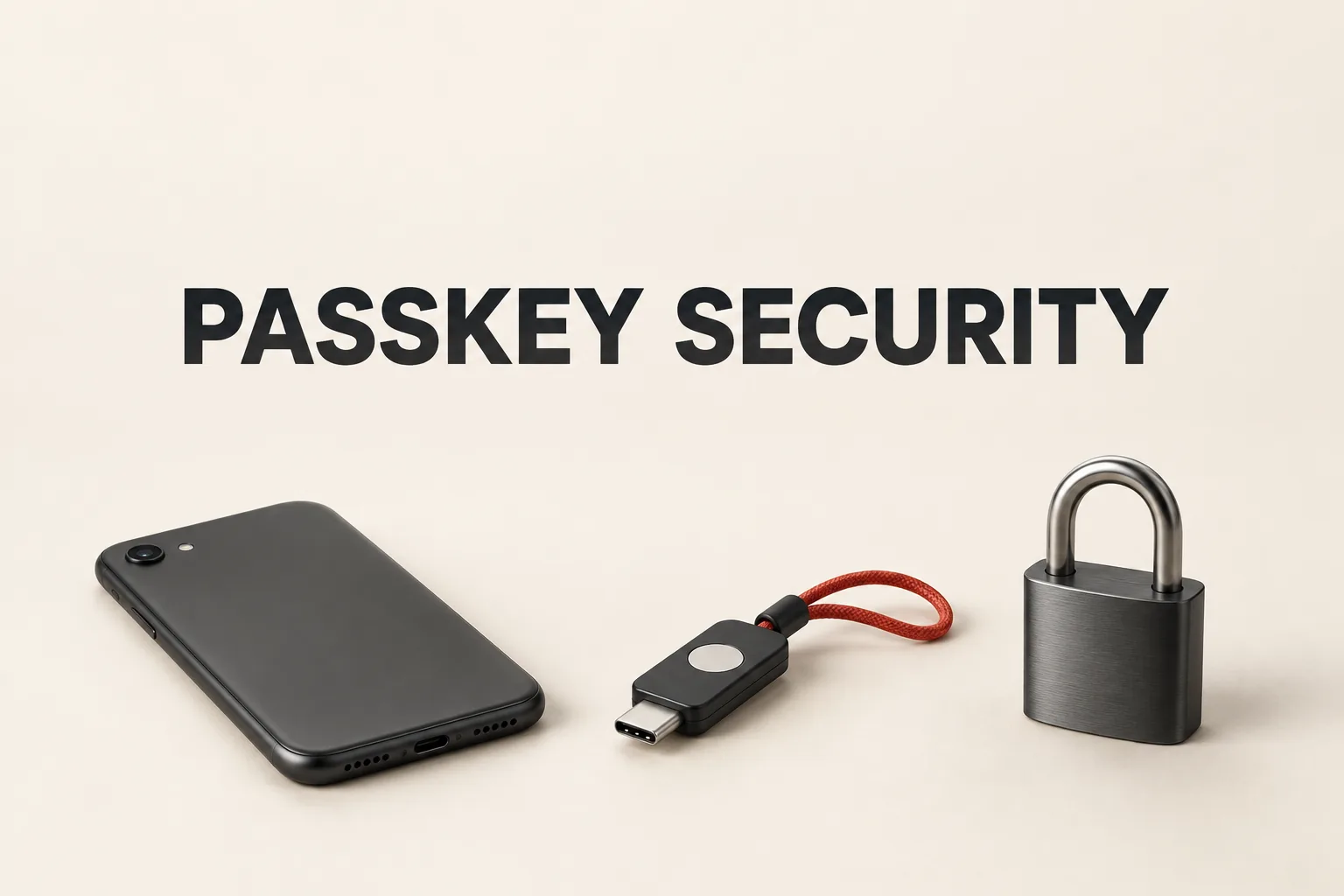
Google’s security tools can appear to answer the same question—“Is my account safe?”—but they operate at different points. Password Checkup looks at saved passwords; a passkey changes how a Google Account can be verified at sign-in. Google India’s safety guidance includes a passkey as one account-protection option, but that does not turn Password Checkup into a passkey setup—or the other way around.
The useful question is not which label sounds newer. It is whether the immediate problem is an exposed, reused or weak saved password, or the act of entering a password during Google Account sign-in.
Is a passkey a replacement for a Google password?
Not automatically. Google Account Help says adding a passkey does not remove an existing password, recovery methods or other authentication factors. A passkey lets the device’s screen lock—such as a fingerprint, face scan, PIN or passcode—verify the sign-in instead of typing the password. Google also says biometric information stays on the device and is not sent to Google.
The practical implication is important: creating a passkey changes the available sign-in method, but it does not delete the old credential. A passkey should therefore not be read as proof that the password and recovery setup have disappeared.
What does Password Checkup actually cover?
Google Password Manager’s Password Checkup reviews passwords saved in the Google Account and identifies three types of warning:
- Compromised: the credentials appear in known third-party data breaches.
- Reused: the same password is used on multiple websites.
- Weak: the password is relatively easy to guess.
The check is available through passwords.google.com, where Google directs users to select Password Checkup. Its boundary matters: the result concerns the saved-password set that Google can review. It is not a blanket statement about every password ever used outside that set.
That makes Password Checkup an inspection tool, not a replacement for the Google Account sign-in method. A warning tells you which saved credential needs attention; it does not decide whether a passkey is appropriate for the account.
A better order than treating them as competing choices
- Use Password Checkup when the question is about saved credentials. Look for compromised, reused and weak-password warnings.
- Consider a passkey when the question is how to sign in to the Google Account. Google’s setup path is
Google Account → Security & sign-in → Passkeys and security keys → Create a passkey, followed by unlocking the device. - Use only a device whose unlock access you control. Google says to create passkeys only on devices you personally own and regularly use, because anyone who can unlock that device may be able to access the Google Account.
- Remember that the password remains. If password-first sign-in is preferred, Google says to turn off
Skip password when possiblein Google Account settings.
This is not a ranking between two security products. It separates two jobs: Password Checkup examines stored credentials, while a passkey provides another way to verify a Google sign-in. Keeping those jobs separate prevents a new passkey prompt from being mistaken for a full password audit.
The useful takeaway for Google users in India
Treat Password Checkup and passkeys as complementary decisions. Checkup helps interpret warnings among saved passwords. A passkey changes the sign-in experience through the device’s unlock method. Since adding one does not remove the other, the clearest reading of a new passkey option is simple: Google Account sign-in has another route, not that the old password has been erased or every saved credential has been checked.